
Turn this metric into a baseline for your team
Preview a system-level engineering health report, then connect GitHub when you are ready to compare this metric with your own delivery history.
Read-only GitHub · Your code stays yours · Team-level by default · No credit card
GitHub's built-in Insights provide basic repository statistics, but they fall short for team-level visibility. This guide shows you how to compile meaningful GitHub statistics across your repositories - the numbers engineering managers actually need to track team performance.
Understanding team velocity, identifying bottlenecks, and reporting to leadership all require more than commit counts and contributor graphs. Here's how to build a proper statistics dashboard from your GitHub data.
What GitHub Insights Doesn't Show You
GitHub's native Insights are useful but limited:
| GitHub Insights Shows | What Teams Actually Need |
|---|---|
| Commit count per contributor | Cycle time and throughput trends |
| Code frequency (additions/deletions) | PR size distribution and risk analysis |
| Contributor list | Review load balance and collaboration patterns |
| Traffic and clones | Delivery metrics (deployment frequency, lead time) |
| Per-repository data only | Cross-repository and org-level aggregation |
The biggest gap: GitHub Insights are repository-centric, but teams work across multiple repositories. You need team-level aggregation.
Essential Team Dashboard Metrics
A proper team dashboard answers: How fast are we delivering? Are we delivering quality? Is the team sustainable? Here are the metrics that matter:
Delivery Speed
| Metric | Definition | Target |
|---|---|---|
| Cycle time | First commit to merge | < 5 days |
| Time to first review | PR opened to first review | < 4 hours |
| Merge frequency | PRs merged per day/week | Stable or trending up |
| PR throughput | PRs completed per developer | Context-dependent |
Code Quality
| Metric | Definition | Target |
|---|---|---|
| Review coverage | % of PRs with reviews | 100% |
| PR size | Lines changed per PR | < 400 lines |
| Test failure rate | % of PRs with failed checks | < 10% |
| Code churn | % of code rewritten within 2 weeks | < 15% |
Team Health
| Metric | Definition | Warning Sign |
|---|---|---|
| Review load variance | Distribution of reviews across team | Top reviewer > 3x average |
| Knowledge silos | Files with single contributor | > 20% of files |
| After-hours commits | Work outside business hours | > 15% of commits |
| Stale PRs | PRs open > 1 week | > 10% of open PRs |
Building Your Team Dashboard with CodePulse
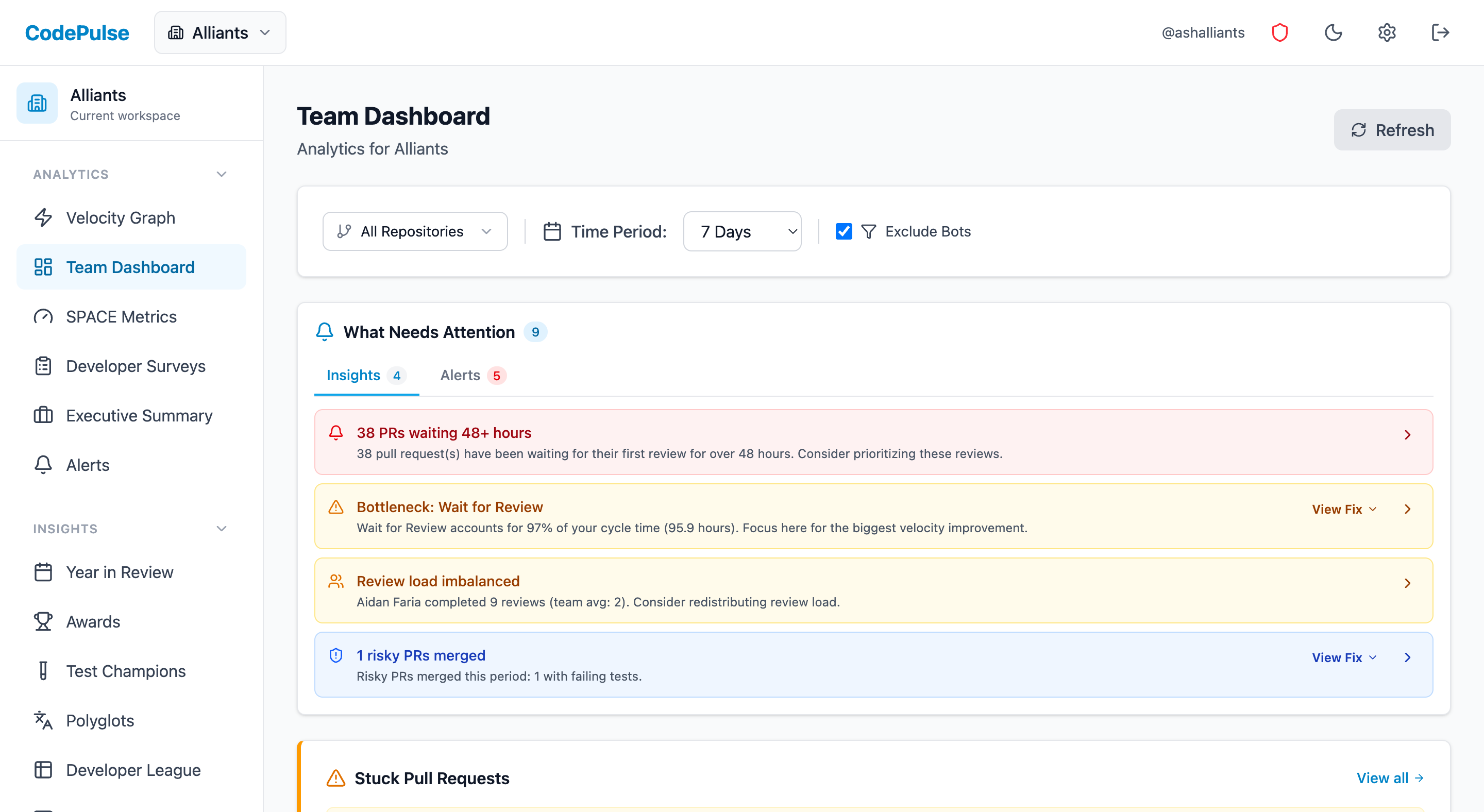
CodePulse extracts these metrics from your GitHub data automatically. Here's how to set up an effective team dashboard. If you'd rather see the step-by-step walkthrough for wiring GitHub to an engineering dashboard, our GitHub engineering dashboard setup guide covers the connection flow, permissions, and the first week of data in detail.
Step 1: Connect Your Repositories
After connecting your GitHub organization, CodePulse syncs all repositories you have access to. You can then filter views by:
- Specific repositories (for team-level view)
- All repositories (for org-level view)
- Time period (last 30 days, quarter, etc.)
Step 2: Review the Dashboard
The Dashboard shows your key metrics at a glance:
- Cycle time breakdown: Where time is spent (coding, waiting, reviewing, merging)
- PR activity: Opened, merged, and review trends
- Quality indicators: Review coverage, test pass rates
Step 3: Explore Collaboration Patterns
The Review Network visualizes who reviews whose code:
- Node size = review volume
- Connections = review relationships
- Isolated nodes = team members not participating in reviews
This helps identify overloaded reviewers, isolated contributors, and cross-team collaboration opportunities.
Step 4: Identify Code Risks
The File Hotspots view shows:
- High-churn files that may need refactoring
- Knowledge silos (single-contributor files)
- Complex files getting frequent changes
Step 5: Set Up Alerts
Configure Alert Rules to catch problems early:
- PRs waiting for review > 24 hours
- Cycle time exceeding threshold
- Review coverage dropping below 100%
Team-Level vs Org-Level Views
Different audiences need different views:
For Engineering Managers (Team View)
Focus on their specific repositories:
- Filter dashboard to team's repos only
- Track individual contributor patterns (for coaching, not evaluation)
- Monitor sprint-to-sprint trends
- Identify specific bottlenecks to address
For Directors/VPs (Org View)
Focus on cross-team patterns:
- Compare metrics across teams (with context)
- Identify organization-wide bottlenecks
- Track quarter-over-quarter trends
- Use Executive Summary for board reporting
⚠️ Comparing Teams Fairly
Team comparisons require context. A platform team's metrics will look different from a feature team's. Compare teams to their own baselines, not to each other, unless they're doing similar work.
Common GitHub Stats Questions
"What's our team velocity?"
Look at PRs merged per week, trending over time. But remember:
- Velocity isn't a target - it's a planning tool
- Sustainable velocity > maximum velocity
- Quality metrics should accompany velocity metrics
"Who are our bottlenecks?"
Check the cycle time breakdown:
- Long "wait for review" = need more reviewers or SLAs
- Long "review time" = PRs too large or complex
- Long "merge time" = approval/CI process issues
Also check the Review Network for overloaded reviewers.
"Are we improving?"
Compare metrics month-over-month:
- Cycle time trending down = good
- Review coverage stable at 100% = good
- PR size trending down = good
- After-hours commits trending down = good
"What should we focus on?"
Start with the biggest bottleneck in your cycle time breakdown. Typical priority:
- Review wait time (if > 4 hours average)
- PR size (if > 400 lines average)
- Knowledge silos (if > 20% siloed files)
- Test failure rate (if > 10%)
From GitHub Stats to Actionable Insights
The goal isn't just to collect stats - it's to drive improvement. Here's how to turn data into action:
Weekly Team Check-In
- Review dashboard metrics (5 minutes)
- Discuss any alerts that fired
- Identify one thing to improve this week
- Check progress on previous week's focus
Monthly Leadership Report
- Export key metrics from the Dashboard
- Add context (what happened, why metrics moved)
- Highlight wins and areas of concern
- Propose actions for next month
Quarterly Planning
- Review quarter-over-quarter trends
- Identify systemic issues to address
- Set improvement goals with specific metrics
- Allocate time for process improvements
Getting Started
Ready to build your team dashboard? Here's the quick start:
- Connect GitHub – Authorize CodePulse for your organization
- Wait for sync – Initial data processing takes 30-60 minutes
- Review Dashboard – See your current cycle time and throughput
- Check Review Network – Understand collaboration patterns
- Set up alerts – Get notified when PRs get stuck
Within a day, you'll have visibility that GitHub Insights alone can't provide.
Now measure this metric on your own repositories
Connect read-only GitHub in about five minutes and get your baseline, your trend, and the constraint behind it. Your fourteen usable trial days start when the first repository finishes syncing.
Read-only GitHub · Your code stays yours · Team-level by default · No credit card
See These Features in Action
Board-ready engineering performance in a single page.
Compare contribution patterns for coaching, not surveillance.
Related Guides
GitHub Insights Is Useless. Here's What to Use Instead
Learn how to get meaningful team-level analytics from GitHub, including delivery metrics, collaboration patterns, and cross-team insights.
Engineering Metrics Dashboard: The 7 Metrics You Need
Skip vanity metrics. Here are the 7 engineering metrics VPs actually need to track team performance, delivery, and quality.
GitHub Is Hiding Your Repo's Real Health Score
Learn which repository-level metrics matter for engineering managers and staff engineers, how to track them across multiple repos, and when to intervene based on health signals.
GitHub Metrics That Matter: A No-Vanity Shortlist
GitHub is a goldmine of engineering data. This guide shows which GitHub metrics actually matter (PR cycle time, review load, knowledge distribution), how to build a useful dashboard, and which vanity metrics to avoid.